Use Gymfile widgets
Add quick access and progress information to your Home Screen.
Brief explanation
Gymfile widgets put workout shortcuts and progress information on your Home Screen, Lock Screen, and supported accessory areas. They are useful when you want to start the next workout, continue an active workout, or glance at training progress without opening the full app first.
How it works
Widgets read the workout, recovery, habit, and progress data saved by Gymfile. Tapping a workout widget opens the related place in the app, such as the active workout, a specific workout, workouts overview, muscle recovery, or insights.
Some widgets can be configured after you add them. iOS controls the widget gallery, edit sheet, refresh scheduling, and Lock Screen placement.
Available widget types
Gymfile includes these widgets:
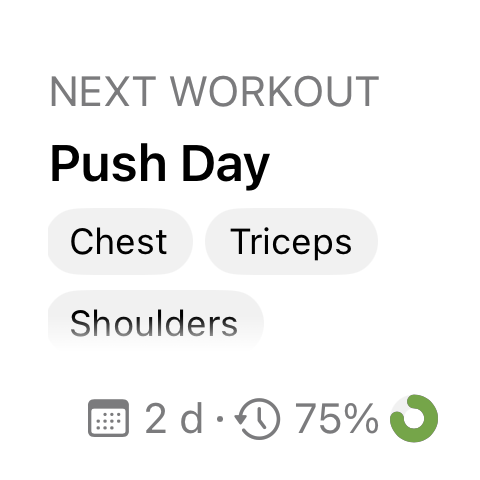
- Workout details: shows your next workout, last workout, a selected workout, an active workout, or first-workout setup state.
-
Workouts overview: shows a summary of selected workouts.
-
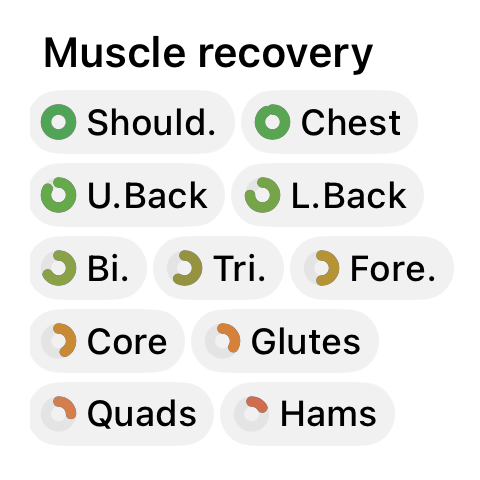
Muscle Recovery: shows muscle recovery, sorted by most recovered or least recovered.
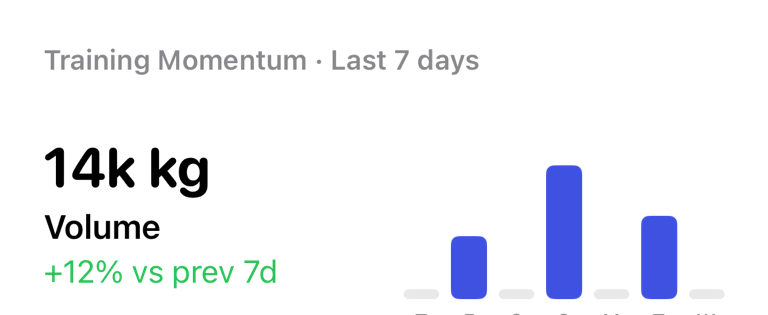
- Training Momentum: compares recent volume, duration, workouts, sets, reps, or calories with the previous period.
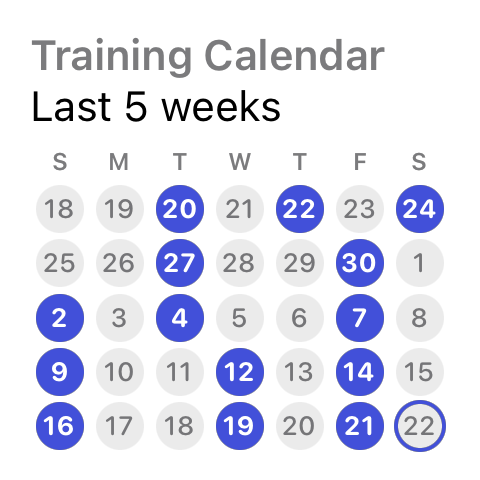
- Training Calendar: highlights the days you trained in a compact calendar.
- Start Next Workout: a compact accessory widget for quickly opening your next workout.
- Active Workout: shows live active-workout information when a workout is running.
Available sizes depend on the widget. For example, Training Momentum supports small and medium Home Screen widgets, while the accessory version supports Lock Screen accessory layouts.
Add a widget to the Home Screen
- Touch and hold an empty area on the Home Screen.
- Tap Edit or +, depending on your iOS version.
- Search for Gymfile.
- Choose the widget you want.
- Select a size.
- Tap Add Widget.
After adding the widget, tap it once to confirm it opens the expected place in Gymfile.
Configure a widget
- Touch and hold the widget.
- Tap Edit Widget.
- Change the available options.
- Tap outside the edit sheet to save.
Configuration depends on the widget. Training Momentum can change the period and main metric. Training Calendar can show the current month or last 5 weeks. Muscle Recovery can choose whether to show the most recovered or least recovered muscles first. Workout overview and workout details widgets can use selected workouts when iOS shows that option.
Use widget shortcuts
Tap a workout widget to open the related workout or active workout in Gymfile. Tap Training Momentum or Training Calendar to open insights. Tap Muscle Recovery to open recovery information.
If a widget opens Gymfile but not the expected screen, open the app normally once, then tap the widget again. Deep links depend on the app having current local data.
Understand when widget data refreshes
Gymfile asks iOS to refresh workout widgets when workouts change, when a workout is performed, and when the app goes to the background after changes. Recovery widgets refresh after performed workouts. Habit widgets refresh when tasks change.
iOS may still delay or combine widget refreshes to save battery. This means a widget can briefly show older information even after the app has newer data.
Important behaviour
Widgets only show data that is available to the widget extension. If you just installed Gymfile, open the app once before relying on widgets.
Active-workout widgets need an active workout. If no workout is running, iOS may show a placeholder or a different workout state.
Lock Screen and accessory widgets have less space than Home Screen widgets. They intentionally show shorter summaries.
Common questions
Why is my widget empty?
Open Gymfile once and confirm you have workout data, habits, or recovery data for the widget type you added. If you added a workout-specific widget, edit the widget and choose a workout if iOS offers that setting.
Why is the information outdated?
Open Gymfile, make sure the latest workout or habit changes are saved, then return to the Home Screen. iOS controls the final refresh timing, so the update may not be instant.
Can widgets start a workout directly?
Widgets open Gymfile to the relevant workout or active-workout screen. Starting or finishing a workout still happens in the app.