Find and create exercises
Search built-in exercises and add custom exercises when needed.
Use Exercises to find movements, check how they are performed, and create your own exercise when the built-in list does not match what you need.
How exercises work
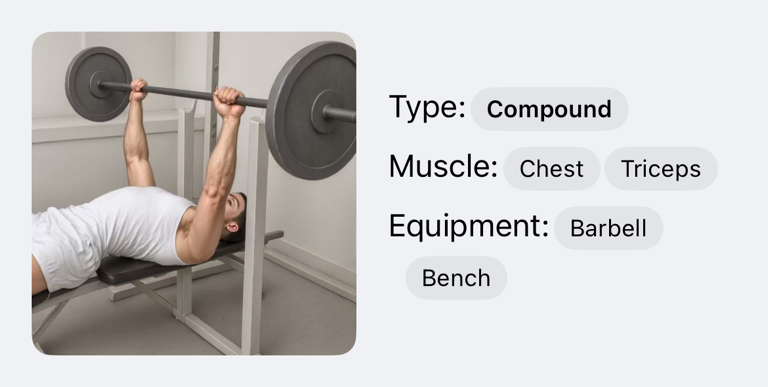
The exercise list includes built-in exercises and your custom exercises. Built-in exercises can include an animated demonstration, type, muscle groups, equipment, instructions, pros and cons, and history from your workouts.
When you open an exercise from the main exercise list, Gymfile shows the exercise details and your past performance. When you choose an exercise while editing or logging a workout, tapping an exercise adds it to that workout flow instead.
Find an exercise
- Tap the Exercises tab.
- Tap Search Exercises.
- Enter the exercise name or part of the name.
- Tap an exercise card to view its details.
The list also prioritizes exercises you have used recently, so common exercises are easier to find again.
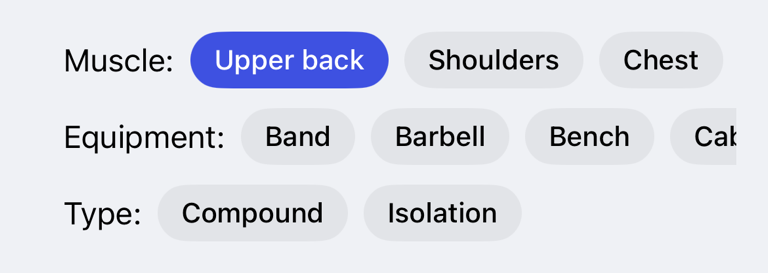
Filter exercises
- Tap the Exercises tab.
- In Muscle:, tap one or more muscle chips.
- In Equipment:, tap one or more equipment chips.
- In Type:, tap one or more type chips.
- Tap a selected chip again to remove that filter.
Filters and search work together. For example, you can filter by Equipment: and then search inside those results.
Add an exercise to a workout
- Open the workout you want to edit or log.
- Tap Add Exercise.
- Use Search Exercises or the filters to find the exercise.
- Tap the exercise card.
When the exercise picker is opened from a workout, tapping an exercise adds it to that workout instead of opening the exercise details page.
View exercise details
- Tap the Exercises tab.
- Tap an exercise card.
- Review the animation, type, muscles, equipment, and last session information.
- Tap How to perform to show the step-by-step instructions when they are available.
Some exercises also show pros and cons, primary and secondary muscle information, and a progress chart once you have logged them. If an exercise has no history yet, Gymfile shows that history will appear after you perform it.
Create a custom exercise
- Tap the Exercises tab.
- Scroll to Can't find what you're looking for?.
- Tap Add a Custom Exercise.
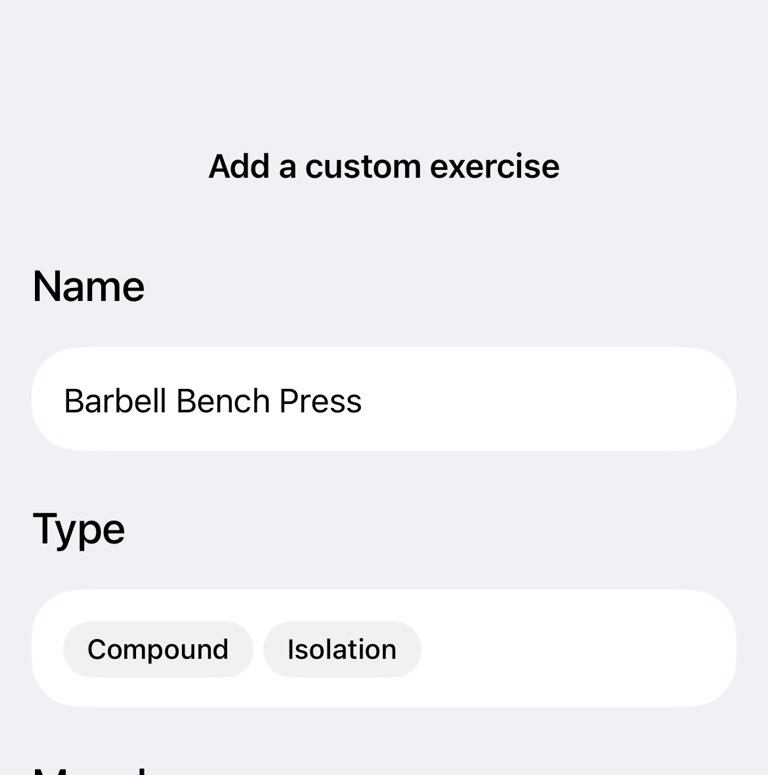
- In Name, enter the exercise name.
- In Type, choose one type.
- In Muscle, choose at least one muscle.
- In Equipment, choose at least one equipment option.
- In Image, tap Select if you want to add a photo.
- Tap Save Exercise.
Custom exercises are a Pro feature. If you do not have Pro, Gymfile shows the Pro lock before saving.
Edit or delete a custom exercise
- Tap the Exercises tab.
- Find your custom exercise.
- Tap Edit on the exercise card.
- Change the name, type, muscles, equipment, or image.
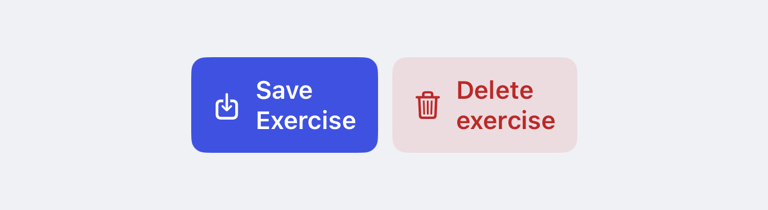
- Tap Save Exercise.
To delete a custom exercise, tap Delete exercise in the edit sheet and confirm. If the exercise is used in your workout templates, Gymfile shows It's not possible to delete this exercise and keeps the exercise available so those templates still work.
Important behaviour
Built-in exercises cannot be edited. If you need a different movement, create a custom exercise instead.
Custom exercise deletion hides the exercise from normal use. Existing workout history remains part of your saved workout data.
If an exercise or piece of equipment is missing, first search for a similar movement and use filters to narrow the list. Create a custom exercise when you need separate history, a different name, or equipment that is not represented by the built-in exercise.
Exercise variations are separate from custom exercises. Use variations when the exercise is the same but the machine, grip, technique, or gym setup should keep separate progress. See Use exercise variations for different machines and gyms.
Common questions
Why do I not see an exercise?
Check whether search and filters are active at the same time. Remove selected muscle, equipment, or type chips if the list is too narrow.
Should I create a custom exercise or a variation?
Create a custom exercise for a different movement. Create a variation when it is the same movement but you want separate progress for a machine, grip, technique, or gym setup.
Can I add my own exercise image?
Yes. In Image, tap Select while creating or editing a custom exercise. You can remove it later with Delete.